
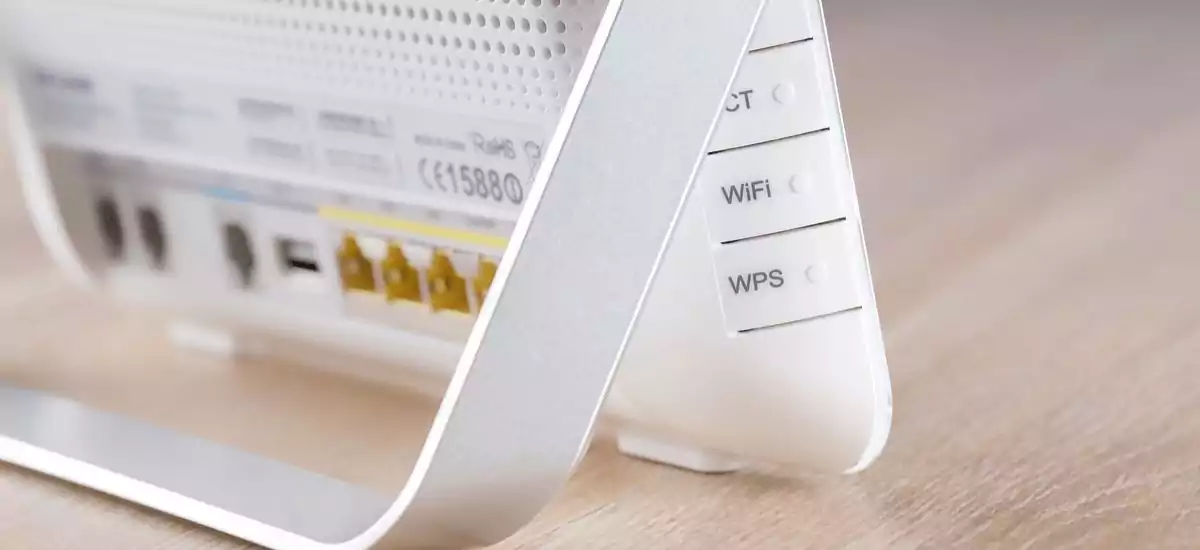
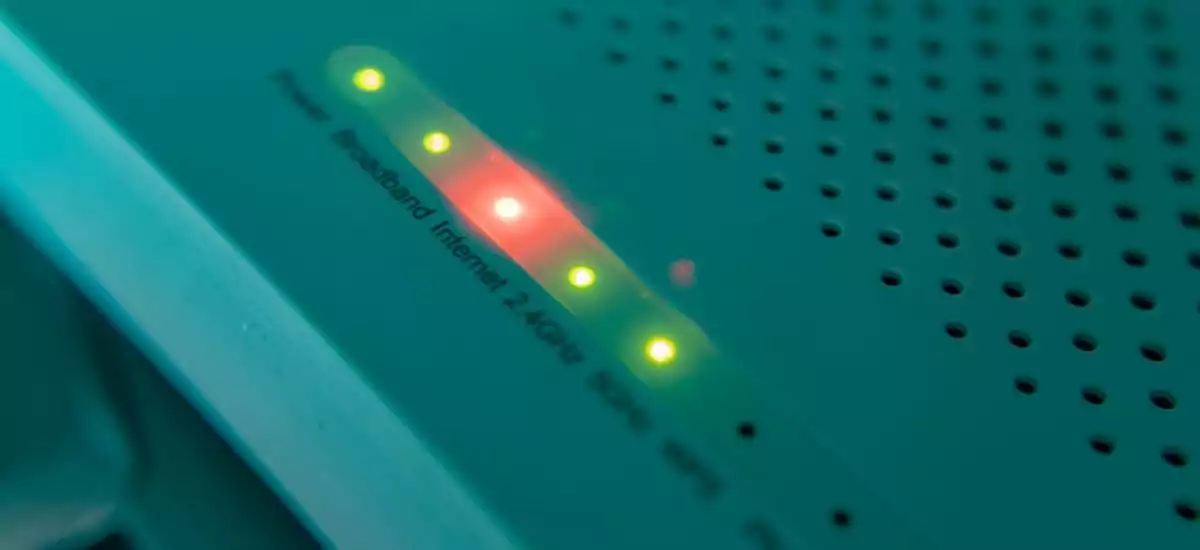
AT&t router broadband red light is the indication of loss of internet. Thus, you can try restarting your router or looking for damage in your cords to fix this.
Or, attempt to reset your router if that doesn’t work.
Furthermore, though, AT&T gateway’s red Broadband light indicates problems establishing an internet connection, but it can turn red due to a number of reasons.
It includes an equipment hardware problem or an outage of the AT&T service in your location. This can also occur if the router or gateway has software faults, however addressing all of these problems is very simple and just takes a few minutes.
What Does A Red Light On Your AT&T Internet Router Means?
Depending on the precise type and equipment you have, the red light’s exact significance or meaning can change.
However, it typically indicates that there is an issue with the internet connection or the router. There wouldn’t be a red light if the router and internet connection were both functioning properly.
However, it might only be a minor problem and not need any substantial fixes; we’ll discuss how to fix the red light in more detail later.
Let’s concentrate on determining what the red light actually indicates for the time being. Make sure the red light is on your router and not your modem or gateway first.
Knowing the potential causes of an AT&T broadband light that is red is important.
The causes can be these for instance:
- The gateway is malfunctioning.
- There is no detectable broadband or DSL signal.
- The gateway cannot connect to the network of the service provider.
Different types of red lights have different meanings. We have listed some of them in brief down here:
- Solid red- (WPS light OFF) Your gateway is overheating because of where it is located. Place it on a surface that is open and flat.
- Solid red- (WPS light red) A hardware issue with your gateway exists. Replace it if a restart doesn’t make it better.
- Flickering red- The network service has a problem. Restart the gateway first. If it doesn’t work, use Smart Home Manager on your PC to look for service interruptions. Alternatively, get the software from the Google Play or Apple App stores. Regarding the WPS, it can potentially imply that your gateway found an excessive number of devices attempting to connect simultaneously. The gateway may also be restarting.
- Slow-blinking red- There isn’t an internet connection at your gateway. Make sure your cords are safe and undamaged by checking them. The red reset button should then be pressed and held for 10 seconds.
Now that we are aware of the potential causes and meanings, let’s examine what we can do to address them.
Solid Red vs Flashing Red Light
As previously mentioned, a solid red light indicates the presence of a broadband signal but the absence of internet connectivity.
On the other hand, a red light that is flashing may indicate a shaky connection rather than none at all. This cable may also be damaged, which would explain why the modem and router keep connecting and disconnecting.
Read More about How To Pair Oculus Quest 2 To Phone
What’s The Difference b/w Router vs Modem vs Gateway?
Managing networking equipment at home might be confusing. The ultimate goal is to have fast, reliable WiFi, but there are several factors that must work together to make that happen.
Now we’ll study routers, modems, and gateways to get rid of the confusion between these three.
- Router- A home router is connected to the modem and serves as a network traffic controller. Your devices are linked together via the router using an Ethernet and WiFi connection, and data is tunneled between them and out to the modem. There are options for routers that are both wireless and wired.
To stop harmful traffic from traveling between your devices and out to the internet, routers frequently have a set of firewall rules. The router is the most popular target for cybercriminals because of its crucial role in household internet connectivity.
- Modem- A modem, also known as a modulator-demodulator, is a tool used to connect to an ISP’s wider internet access. Information is sent from your ISP’s network to your local area network through a tunnel created by your modem. It accomplishes this by attaching to the telephone lines, optical fiber, or coaxial cabling of the broadband provider and converting the data into a digital signal. In order to direct traffic, your service provider can use the modem’s public IP address.
Modems are generally leased by broadband providers to their customers, which might provide the extra benefit of a better-managed service.
- Gateway- A gateway is a standalone system that may serve as a router and a modem simultaneously. Your local WiFi network or Ethernet will be connected to your ISP’s network if you have a dual router and modem device. This is frequently seen in the same physical device together with phone service.
The term “gateway” is frequently used informally in the broadband sector to describe a device that serves as a major node (forwarding host), linking additional points of entry or networks.
How To Fix A Red Light On Your Router, Modem, Or Gateway
There are various measures you may take to fix a red light on your router, modem, or gateway without necessarily hiring an expert:
- Look for service disruptions: You may check if there is a service interruption right now in your region by visiting the AT&T outage portal at this location. These typically happen following a storm or a power loss. All you can do if that is the cause of your red light issue is wait a short while till everything is back to normal.
Consider utilizing your phone to create a mobile hotspot while you wait if you have unlimited mobile data, whether it comes from AT&T or another provider. To your phone’s hotspot, you can connect other devices like your laptop.
- Verify the connections, paying careful attention to the green DSL cable: This issue can occasionally be caused by a loose connection. You may thus quickly verify the connections, or even better, disconnect everything and then reconnect it all while making sure that everything is secure and tight. Pay close attention to whether the green DSL broadband cable is firmly seated in the gateway at both ends.
- Consider restarting the Gateway: This one doesn’t require any specific technical knowledge, but rebooting a device usually fixes the majority of issues you might encounter. Before moving on to the following step—resetting the modem to factory settings—the modem must also be restarted in case the issue persists.
You must disconnect the power cable from the back of the gateway in order to restart it. After waiting for 15 to 20 seconds, re-plug the power cable. Watch the router lights for a few minutes until they stabilize and become green.
- Reset the modem to its default settings: Normally, we attempt to save this choice for last. The modem will be reset to factory defaults, for this reason, necessitating a complete configuration from scratch. Your customized settings, including your network name, Wi-Fi password, guest network, and other preferences, will be gone. The process is rather easy to follow if you decide to continue. Here are some authorized methods for factory resetting your AT&T modem.
- Contact AT & T: Consider calling AT&T if simple steps like moving the router, turning the modem on and off again, and inspecting the cords don’t solve the problem. Your internet package might not be working properly; perhaps you neglected to update it or your payment failed to process.
In most cases, AT&T can assist you in determining whether your account is having a problem, whether there is an outage in your region (even if it doesn’t appear on the map), or whether there might be a problem with your router or modem.
Additionally, they might be able to offer you some troubleshooting tips on how to fix or reset your modem or router.
- The modem, gateway, or router should be replaced: Your modem, router, or gateway may need to be replaced if there is a hardware issue, regardless of whether it is showing a red light. Yes, it will cost you some money, but having a reliable internet connection that doesn’t cut out on you is worth it.
- Contact A Licensed Technician: When everything else fails, you can contact a technician to identify the issue. As a last resort, AT&T customers can schedule an appointment for a repair.
Also, Read About How To Watch Naruto Shippuden On Netflix
Learn The Meaning Of Your Wi-Fi Gateway Lights

The meaning of each status light is explained in the following chart:
| LIGHT’S STATUS | STATE | DESCRIPTION |
| Power | Green Flashing Green Amber Red | Power is present. The entrance is opening. A software upgrade is in progress. Before the update is finished, don’t remove the battery or unplug the power. There could be an issue with the power supply or the gateway. |
| Battery | Green Flashing Green Red Flashing Red Amber Flashing Amber Off | Although the battery is fitted, the gateway is not currently running off of it. The battery is being charged. The backup battery system is broken. Replace the battery, please. Battery power is used by the gateway. Low battery power is a problem. Either a battery is not present or it is not charged. |
| Ethernet | Green Flickering Green | An Ethernet port is used to connect a computer or other device. Devices plugged into an Ethernet port are active. Data traffic and the light’s flickering are coordinated. |
| Wi-fi | Green Flickering Green | The gateway is wirelessly connected to a computer or other device. There is activity coming from wirelessly connected devices. The light’s fluttering pattern is data traffic. |
| Home PNA | Green Flickering Green | The coaxial port is used to connect a set-top box or other gadgets. Devices plugged into the coaxial port are active. Data flow and the light’s flickering are coordinated. |
| Phone 1 & 2 | Green Flashing Green | A phone is registered and connected. The connected phone line is operational. |
| Broadband 1 & 2 | Green Flashing Green Flashing Green & Red Flashing Red | Our network is linked to the gateway. Our network is being attempted by the gateway. For more than three minutes, the gateway has been attempting to connect to our network. The gateway is unable to access our network or is unable to recognize a DSL signal. |
| Service | Green Fast Flashing Green Slow Flashing Green Red | Our network has assigned the gateway an IP address. The link is operational. An IP address is being sought by the gateway. The gateway may be misconfigured, our network isn’t responding, or the authentication failed. The authentication of Internet service has failed. |
Frequently Asked Questions
1. Why is the broadband light red on my AT&T router?
Your AT&T modem has lost its internet connection if the Broadband light is on it turns red.
2. Why is my broadband light red on my wifi box?
When your modem’s red light is on, it often means-
- There is no DSL or cable signal on the line. It’s possible that your internet is down or that there is a connection issue.
- The modem may access the internet but your account is not recognized due to a failed authentication attempt with your ISP.
3. How do I fix the red service light on my AT&T router?
Some methods to fix are listed hereby-
- Manually restart the router.
- Network failure.
- Keep your connections secure.
- Reset the AT&T router firmly.
- Get in touch with AT&T Support.
4. How do I fix my AT&T Broadband Connection?
Here are a few ways to reset-
- Remove the power plug from the rear of your modem or gateway.
- pause for 20 seconds.
- Reinstall the internal battery, if necessary.
- Reconnect the power cord.
- A restart of the gateway or modem may take up to 10 minutes before your broadband light turns solid green.
Check More About How To Make A NSFW Channel On Discord Mobile?


